Audio Overview
The Audio Engine is basically another version of node-based programming. Each node (circuit) provides signal processing abilities and wires are used to connect the circuits. From a use perspective, the interface is very similar to the nodes mentioned above but the processing is optimized for audio as it needs to be real-time. Our ears are very good at detecting small glitches and we perceive them as unwanted clicks, scratches or noise.
Currently there are circuits available to create modular synthesizers and effects but in the future this will grow to components for guitar amplifiers, percussion instruments and audio mixing.
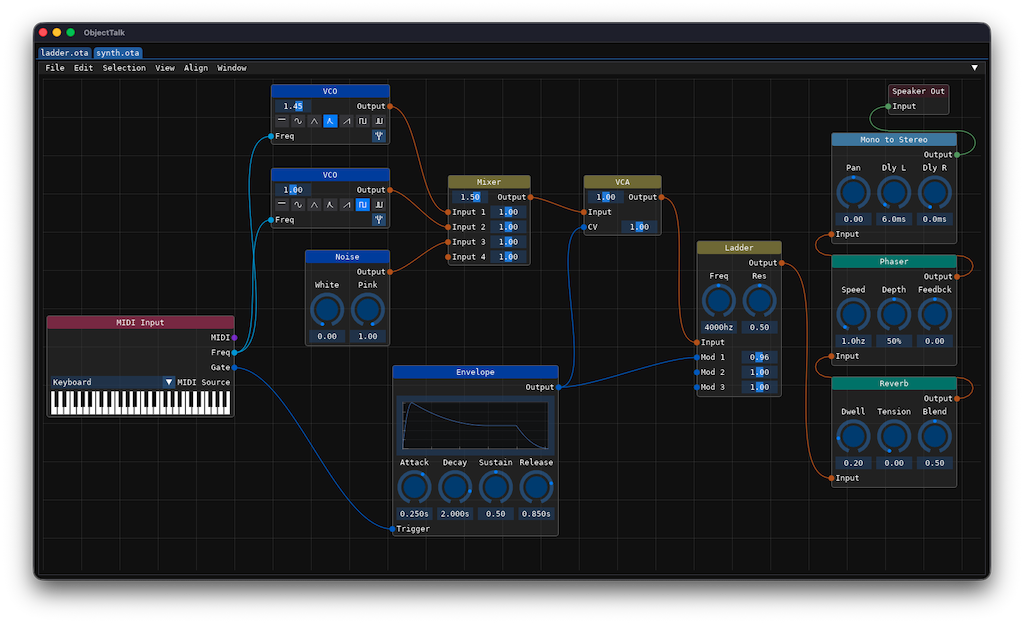
A circuit represents a small function that transforms inputs into outputs, optionally using additional parameters. In ObjectTalk, circuits are visually represented by rounded rectangles displaying a title at the top, inputs displayed on the left and outputs on the rights. Inputs and outputs are referred to as pins that can be connected with wires and can carry only one signal type.
Each circuit really feels like an object instance and drawing connections between them is akin to visual programming. Today, in ObjectTalk, the IDE has an audio editor that allows you to setup circuits and connect them into a larger circuit. These circuits are automatically run in realtime. The examples folder contains signal processing chains and circuits that are used to implement audio processing tools ore instruments. ObjectTalk already has over 20 nodes and many will follow depending on my needs.
Users can draw connections between nodes (called wires) and the editor ensures that output and input nodes have compatible signal types, that inputs have a maximum of one connection and that the created graph does not include recursion (i.e stays acyclic). As wires are created/moved/deleted or values altered, the editor automatically reroutes the signals given the user a realtime programming experience.
Circuit Anatomy
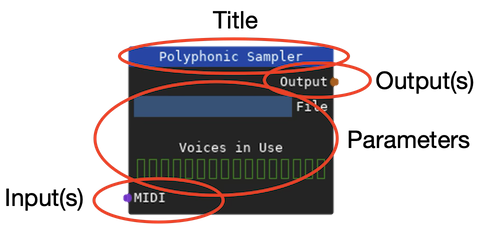
A circuit is depicted as a rounded rectangle with a title bar at the top, optional inputs on the left, optional outputs on the right and optional parameters in the middle of the rectangle.
Title Bar
At the top of a circuit is a title bar which by default contains the name of the circuit. By double clicking on the title, users can name a circuit anything they want to better express its function in the signal flow. The background of the title bar is color coded to represent the category of the circuit (see Circuit Categories below).
Input Pins
Optional inputs to a circuit are represented on the left side of that circuit by what's called pins. Each pin represents an input of a specified type that is color coded (see Pin Types below). Input pins can only receive a signal from one output pin. and the pin data flows have to match (which is enforced by the IDE).
Output Pins
Optional output from a circuit are represented on the right side of the circuit by pins. Each pin represents an output with a specified signal type that is color coded (see pin types below). Output pins can be connected to multiple input pins as long as the signal types match (also enforced by th IDE).
Circuit Parameters
Some circuits also might have additional parameters or visualizations to help the circuit perform its function. The circuit parameters are rendered in the middle of the circuit.
Circuit Categories
Circuits are grouped in categories that make it easier to find them and recognize them in a graph. Each category has a unique color as shown on the right below.
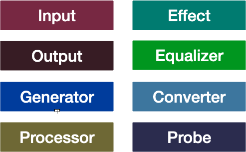
- Input Circuits - These circuits enable users to input values or select assets (e.g. sound files). If a circuit of circuits is used in another object (e.g. a 3D scene), input fields enable users to interact with the circuit's functionality without having the understand the full logic. This in essence makes a circuit a macro or sub-function somewhere else.
- Output Circuits - These circuits enable the user to save signals or route them to computer peripherals.
- Generator Circuits - These circuits generate signals based on provided parameters.
- Processor Circuits - These circuits process one or more signals and generate a new signal (e.g. amps, filters, mixers).
- Effect Circuits - These circuits apply an effect to a signal (e.g. echo, distortion).
- Equalizer Circuits - These circuits implements different equalizer styles.
- Converter Circuits - These circuits converter the signal flow from one type to another (e.g. mono to stereo).
- Probe Circuits - These circuits provide debugging support by visualizing various signal types.
Circuit Pins
The input and output pins of a circuit can only carry one specific signal type. Each of these types is color coded and the IDE ensures wires are only created between compatible types. Below are all the signal types used by pins:
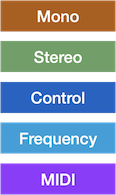
- Mono Pins - carry a mono audio signal.
- Stereo Pins - carry a stereo audio signal.
- Control Pins - carry a control signal with a value between 0.o0 and 1.0 (analogous to control voltages in modular synths).
- Frequency Pins - carry a frequency specification a a stream of number in Hertz.
- MIDI Pins - carry a stream of MIDI messages.